How to remove double newline in text files
As part of the hosting migration, I had some text files that had an extra empty line in them. This was caused by a newline followed by another newline.
On my pc I can search and replace for these using a good text editor. But it’s a bit harder to do on a linux command line.
The fix if it is just an empty new line is to use sed
sed '/^$/d'
as in
sed '/^$/d' < textfile.txt > newtextfile.txt
If the new lines have whitespace (a space or a tab) then use
sed '/^[ \t]*$/d'
You can also get information about the file with the file command
file textfile.txt textfile.txt: ASCII English text
Beware if the output is
Tags: howto, Linux, linux_terminal
How to unlock an iPod screen lock
while keeping all your photos and music!
My daughter’s friend has an iPod with a forgotten the screen lock combination. It had a bunch of photos on it that she’d like to keep too.
So we searched for a fix and finally came up with this simple hack on Windows XP. It should work on other flavours of Windows, and should also work on Linux and Macs.
- Connect your iPod to a PC and enable disk mode in iTunes. You can also manually put the iPod to disk mode
- Open My Computer in Windows Explorer and open the iPod drive. In addition to a drive letter it will also be called the name you gave the iPod e.g. Paul’s iPod
Document Your Sources As You Go
In genealogy (or any other) research: Document your sources as you go.
I find a lot of contradictory information like, my grandmother is reportedly older than her mother, and I see that a headstone is the source of Gran’s birthday and her mother’s source was a drunk uncle.
I create a source called Family Stories and link it to all unverified information that I remember or am casually told at family events. I link that to events like births, marriages, divorces, deaths, immigration and adventures. I can tell at a glance when a new source is more/less reliable. Items linked to the Family Stories source is also a checklist for research for better sources (e.g. Newspaper obituaries, Registers of Births, Deaths and Marriages, military service records).
Tags: best practice, howto, standards
Genealogy Research: Best Practice Part 1
I have been working my family history on and off for a number of years. As my older relatives age, the time left to get their stories is restricted. Sadly dementia claimed the memories of more than one before I’ve had a chance to interview them.
I’m using the brilliant GenealogyJ to catalog the information. It’s a standards based, cross-platform, open-source genealogy data viewer/editor (whew!). That means it reads and writes GEDCOM standard 5.5 or draft 5.5.1 data files for easy data sharing with software and other family researchers. Many other programs out there have quirks when it comes to sharing data with others. Modern genealogy research requires data portability.
There are other free and paid options available and I’ll list some I’ve tried at a later date. Comment below if you can’t wait for that post.
In the meanwhile I’d like to note a best practice method for genealogy research: Document sources as you go. Even if the source is personal memory. Include that in every individual record so you know where you stand. When a cousin provides birthday information, make a note of the source alongside the birthday entry. When the National Archives offers evidence of an ancestor’s birthday – note the source.
As you gather more and more evidence of an event, you can weigh the quality of the sources and the data. This is especially useful to researchers who build on your work. One day some cousins kid will ask for a copy as a basis of their work. Give them a break and note your sources. Also it’s a reminder down the track of why you thought your great-great-grandmother was four years younger than her mother.
The rest of this post gets technical and is for researchers and my personal notes. Let’s say you want to save the audio interview with your Grandmother as supporting evidence for a number of people and events.
Tags: data, dataportability, howto, standards
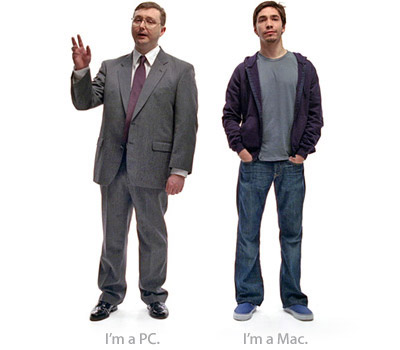
Windows Users Guide to Your New Mac
A number of friends and many acquaintances have moved to Macs and turned their backs on Windows.
I moved full time to a Mac a year ago. Here’s part 1 of my occasional series Your New Mac: a Guide for Windows Users
Things to do with Your New Mac
- Download the Skype client for mac and for chat use Adium http://www.adiumx.com/ multiprotocol on Windows Live Messenger, GoogleTalk, ICQ, AIM, Jabber, QQ, Gadu-Gadu etc. Both are free.
- Running Windows: Bootcamp is faster than parallels because bootcamp runs windows on your intel mac hardware, but you’ll have the stability and security issues of windows all over again. Bootcamp ships with Leopard
PDF files left by Firefox on Mac OS X Desktop
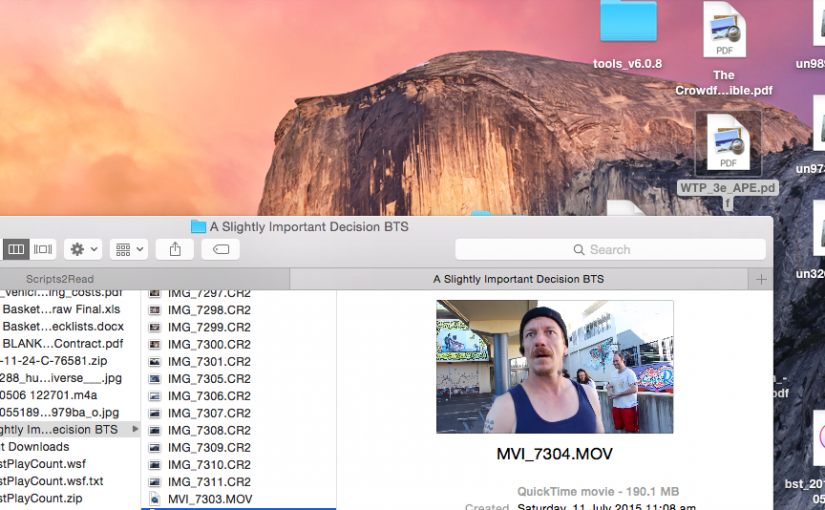
Or: How To Auto-Delete Temporary Files abandoned by Mozilla apps on your Mac OS X Desktop.
Firefox on Mac OS X does not clean up temporary files in the same way as the Windows version. When you right-click a PDF file and view it (instead of save) Firefox downloads it and then runs the browser helper application. Firefox has no way of knowing when you’ve finished with the file, so by design it does not delete it.
This can leave your desktop cluttered with PDF files and other assorted detritus of the web.
Determining PCI Vendor ID and Device ID
In working with LTSP and K12LTSP I use some old hardware as dumb terminals. Some of this old gear presents problems in determining the correct NIC driver or graphics driver to use.
If the old machine still has windows on it I use Craig’s PCI Programs to determine the Vendor ID and Device ID. I then go to PCI Database and look up the vendor ID/device ID pair. This works best for video drivers.
Alternatively I look up the Etherboot database to determine the best network driver.
Tags: drivers, howto, Linux, linux_terminal_server, terminal_server
Mac OS X Keyboard navigation
For those switching from Windows to a Mac go and read the excellent HOWTO Switch To The Mac article from Tao of Mac
If you’re keyboard-oriented, go into System Preferences | Keyboard and Mouse | Keyboard Preferences and Turn on full keyboard access. Now you can deal with dialog boxes the way you’re used to, as well as accessing menus and toolbars with the keyboard.
There is even a hint on getting the home and end keys to work more like Windows users expect them to. I’m struggling with their Mac behaviour, but I’ll perservere for now. Check out the Windows Centric tips
Tags: Apple, howto, migration, Technology, windows
Installing Etherboot on a Hard Disk Drive
My Linux Terminal Server Project is going well, however one of the painful support problems in branches is people removing the Rom-O-Matic boot CD’s we use to boot old PC’s on the terminal server. A lot of the old PC’s have hard drives and staff tinker with the BIOS to get to whatever version of windows is sitting on these old drives. Once they lose the boot CD we have to burn a new one and send it out.
I got frustrated today when I went to a customer service PC and discovered it sitting at a windows 98 logon prompt and the boot CD missing. Now this machine will never work on the network from Win98.
Tags: boot_cd, cd, howto, Linux, linux_terminal, linux_terminal_server
Linux Terminal Server K12LTSP 4.4.1 Build notes
This is for K12 Linux Terminal Server Project K12LTSP 4.4.1 running on Fedora Core 4. I downloded the CD images and burned them to 5 CD’s.
Boot from Disc 1 (of 5)
Hit enter to boot into Anaconda, Fedora’s graphical installer. You can cancel out of the installation at any point up to Required Install Media. Nothing is written to the drive until after that step, so if you get lost (or need to check something) just reboot and start again.
Welcome to Fedora Core Next
Language Selection: English (English) Next
Keyboard Configuration: U.S. English Next
Installation Type: Linux Terminal Server Next
Disk Partitioning Setup: Automatic partition Next
Tags: howto, Linux, linux_terminal, linux_terminal_server, Technology, terminal_server